




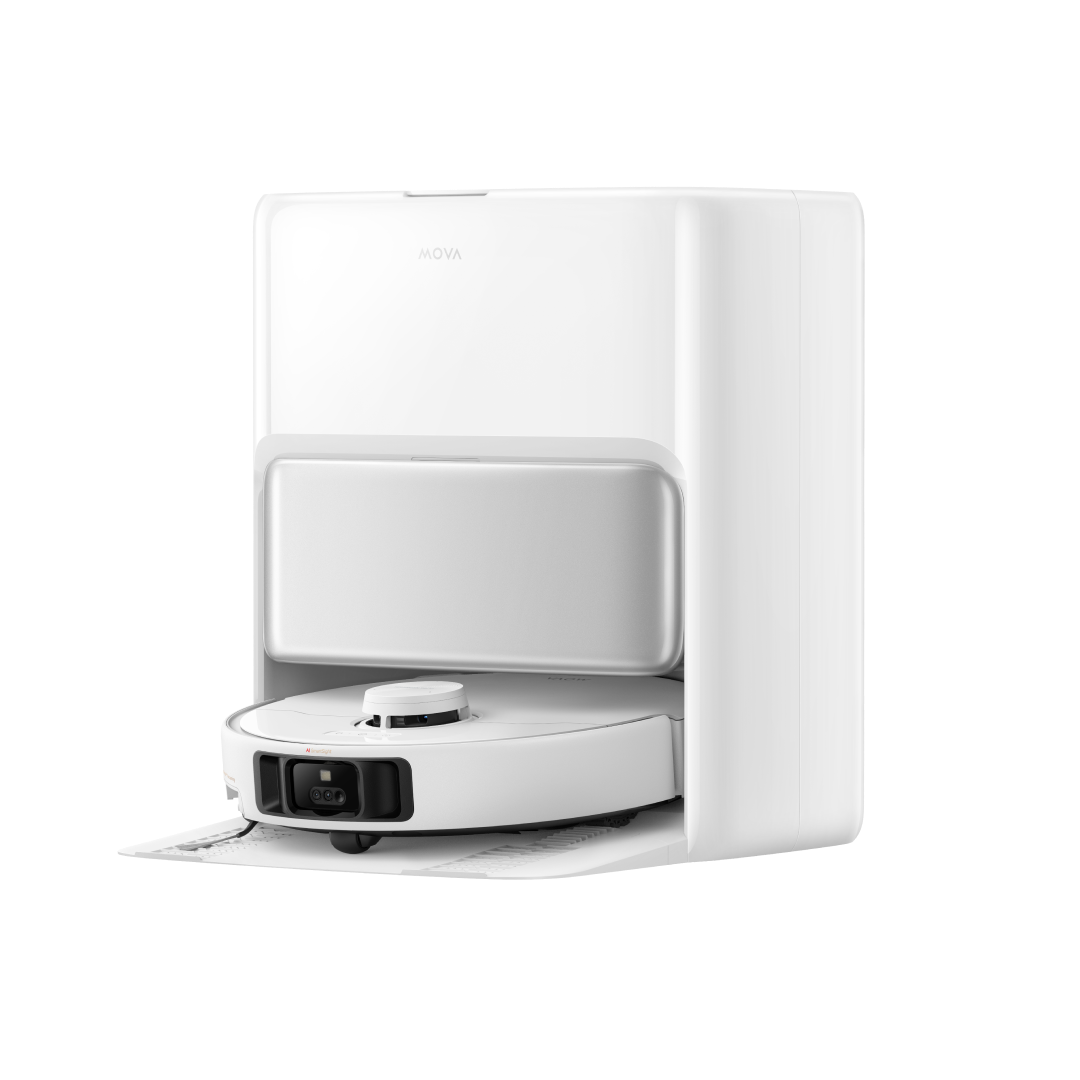

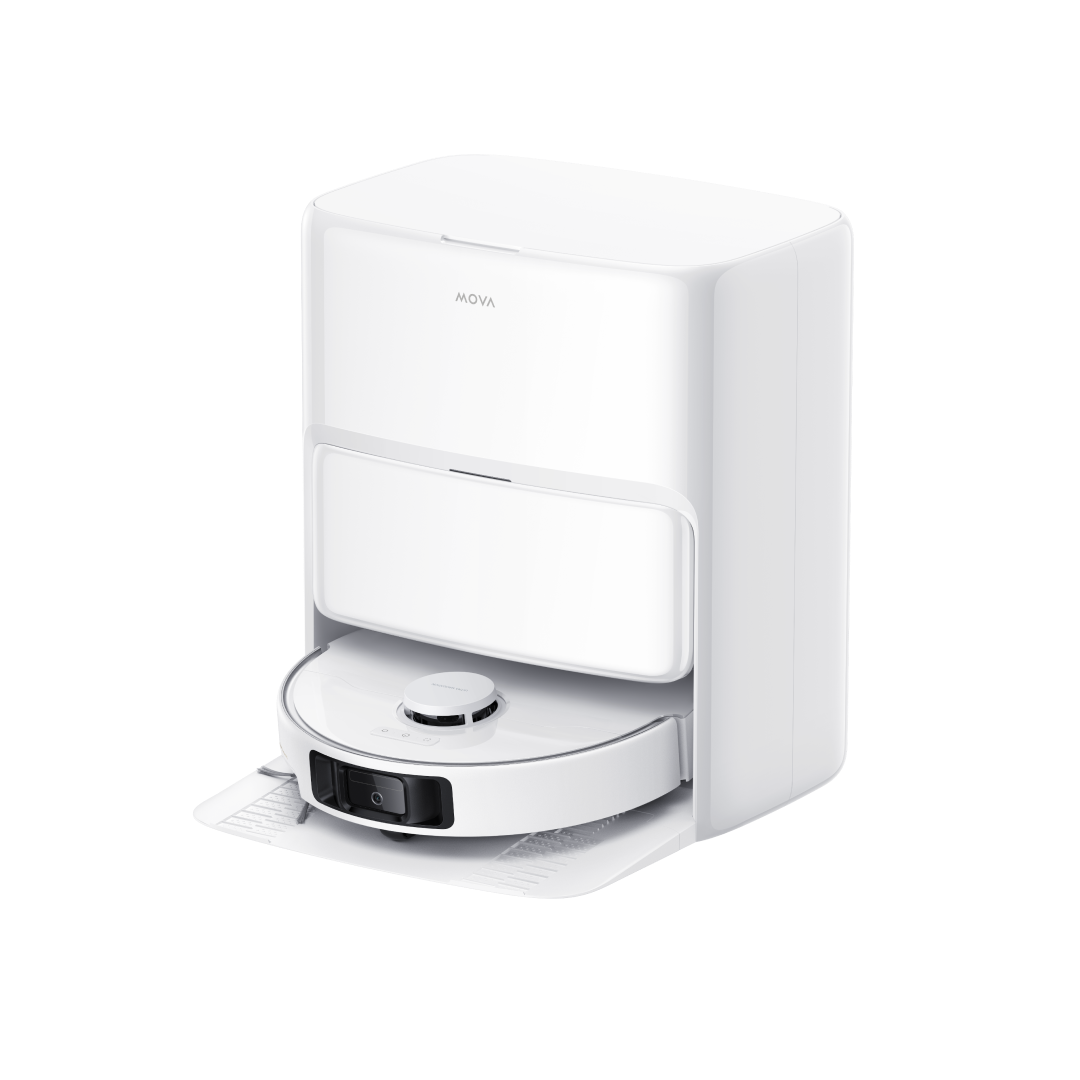


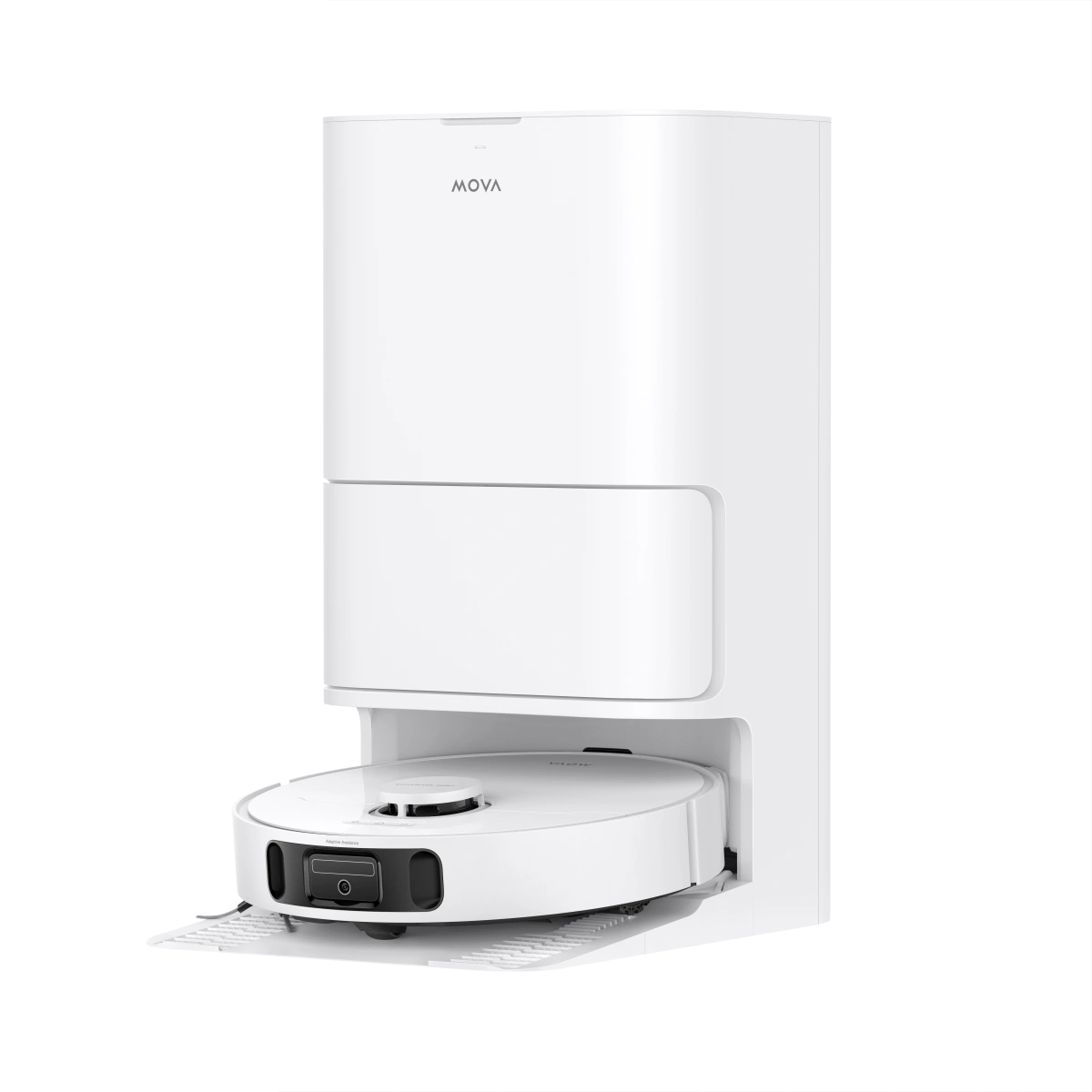








You know that sinking feeling when your robot vacuum starts the spin cycle of life and then… nothing.
The charging dock light blinks. The app shows “charging,” but your robot vacuum cleaner sits there like it quietly checked out for the day.
It’s annoying for sure, messes with cleaning schedules, and can throw off any smart-home routines you've set up.
Well, this guide is for that exact moment.
Searches like “robot vacuum not charging” and “why won’t my robot vacuum charge” are common for a reason: most charge failures come from small, fixable things.
Luckily for you, this guide will walk you through fast checks, smarter troubleshooting, and safe fixes for common robot vacuum battery problems. You’ll get clear steps for quick wins, what to try next if those don’t work, and when a battery swap or contacting MOVA support is the right move.
Not only that…
It will cover battery health too: what a normal lifespan looks like, safe charging habits, and when it’s time to consider robot vacuum battery replacement.
And more!
So keep this open while you work through the checks. A quick fix is often within reach, and if it isn’t, you’ll at least know the exact next step (and the right words to use when you contact support).
Ready to get your robot vacuum cleaner back to work?
Let’s jump right in!
The Frustration of a Dead Robot
We know from experience that a robot vac that refuses to charge hits a special kind of nerve.
And no one has time for that.
This could happen due to all sorts of reasons. Sometimes the charging dock shifted after someone bumped into it. Or the contacts have a light layer of dust that interrupts charging.
Sometimes your MOVA won’t charge because of software glitches that make the app show the wrong status.
And sometimes the issue traces back to typical robot vacuum battery problems, especially if the battery has been through a lot of cycles already.
One thing’s for sure, though…
When your MOVA can’t recharge, it throws your whole setup off. Scheduled cleanings don’t trigger. Routines in your smart home stack stop syncing. And if you rely on the robot for daily upkeep, the break in the cycle is even more noticeable.
In short, one charging failure can turn into a full day of playing catch-up.
But first, before opening settings or digging into advanced fixes, a quick check often reveals what’s wrong.
This tiny list helps you rule out the most common causes in just a few minutes.
Quick Diagnostic Checklist:
Make sure the dock’s plug hasn’t loosened and that the power outlet works. Check the power supply
- Check the robot’s charging contacts for dust, hair, or residue
- Confirm the robot vacuum cleaner is sitting flush on the dock. No crooked angles or raised wheels
- Look at the app to see if it shows a battery indicator or any error message
- Restart the vacuum robot with a short power cycle
- If you recently moved furniture, confirm the dock isn’t blocked by anything
If you can spot the issue early, you save yourself the frustration and skip straight to the “MOVA charging issues” fix that actually applies to your situation.
Next, we’ll go through each step in more detail so you can get your robot powered up again without guessing. Read on!
Step-by-Step Troubleshooting Guide

Level 1: Basic Checks (5 minutes)
Start here.
These are the fastest fixes and solve most charging problems.
Charging contact cleaning guide
Clean the dirty charging contacts. Simply power off the robot and unplug the dock. Then wipe the metal contacts on both the charging dock and the robot with a soft, dry cloth. If there’s stubborn grime, use a slightly alcohol-dampened swab, then dry fully. Do this monthly or after pet hair builds up
Power source verification
- Confirm the dock is fully plugged in, and test the power outlet with another device. If you use an extension or power strip, plug the dock directly into the wall to rule out a flaky strip. Bad wall outlets or a weak power supply are surprisingly common.
- Seat the robot vacuum properly. Make sure the robot sits flush on the dock. Wheels tucked in, no tilt, contacts touching spring terminals. Even a small gap can stop charging.
Hard reset procedure
Remove the robot from the dock, power it off, wait 10-15 seconds, then power it back on and place it on the dock. This simple cycle often clears transient errors. If your model has a dedicated reset combo (power + home/menu), then follow the manual.
Level 2: Intermediate Solutions (15 minutes)
If Level 1 didn’t fix it, try these next.
Battery diagnostics & testing
If you can remove the battery safely (check the manual), measure open-circuit voltage with a multimeter. Compare to the pack rating on the battery label (typical robot Li-ion packs are in the ~14-16 V range for multi-cell packs). A dramatically lower voltage or cells showing a large imbalance indicate the battery is failing and likely needs a new battery. If you’re not confident, skip to professional replacement.
Note battery temperature: most robots won’t charge outside roughly 0-40 °C (32-104 °F). Keep in mind that cold or overheated batteries can refuse to accept charge.
App troubleshooting and updates
Open the MOVA app: check for charging status, error messages, and firmware update prompts. Also, check the battery indicator in the app and look for anything odd. Update firmware if available, as many charging bugs are fixed in app/firmware updates. If the app shows a specific error code, jot it down before contacting support.
Re-pair the robot if the app behaves oddly. Just remove the device from the app, reboot both phone and robot, then add it back.
Dock positioning and alignment
Place the dock on firm, level flooring (not on thick carpet). Leave recommended clearances left/right/front as per your manual, so the robot can find the dock easily. IR/beacon alignment matters; the robot uses IR or other signals to orient and line up with the contacts. Small nudges to the dock or reflective surfaces nearby can break this guide path.
If both the robot and the dock seem fine, check the app’s battery indicator and the home power feed. A failing power supply can make it look like both the vacuum and the dock are dead.
Level 3: Advanced Troubleshooting (30 minutes)
Use these steps if the earlier levels didn’t help and you’re comfortable with deeper checks.
Factory reset procedures
Follow the exact reset steps in your MOVA manual or model-specific guide (button combos vary by model). Factory reset will clear settings and maps, but can fix repeated software faults that block charging. Back up important maps/settings if the app allows. After reset, check the charging before restoring maps.
Component testing & inspection
Inspect the dock’s spring contacts for debris, stuck springs, or corrosion. Gently free stuck springs. Then check the robot’s contact pads for pitting or burned spots. Also, smell for burnt electronics if charging circuits failed; that’s a sign for service.
If you can access the battery connector, check for loose plugs or damaged wiring. Now, don’t attempt PCB repairs unless you’re experienced with small electronics.
When to contact support
Contact MOVA support if: cleaning and resets didn’t restore charging, the battery voltage is out of spec, you notice physical damage, or the robot reports internal errors after reset. When you reach out, make sure to provide the serial number, firmware version, app screenshots, and the exact steps you have already tried to speed up diagnosis. If the battery is swollen, stop using the robot immediately and contact service; swollen Li-ion packs are a safety risk.
Safety & practical notes:
Don’t pry or short contacts. Use soft cloths and non-metal tools for cleaning.
Battery replacement: DIY is possible on many models, but check warranty terms first. If your robot is under warranty, an unauthorized battery swap may void coverage. When in doubt, use an authorized service option.
MOVA-Specific Solutions
Below are the MOVA-tailored fixes that most often sort out charging headaches.
Clean the charging contacts, the MOVA way
First, power off the robot and unplug the base. Then use a soft, dry cloth to wipe the metal contacts on both the robot and the dock.
If there’s stubborn gunk, a cotton swab lightly dampened with isopropyl alcohol works. And then dry fully before reconnecting.
Remember, don’t use abrasive tools or pour liquids! MOVA manuals specifically recommend a dry cloth and warn against wet cleaning of contacts.
Accessing hidden diagnostic modes
MOVA manuals don’t publish a universal “service mode” sequence for all models. Some advanced models and firmwares expose diagnostic options via the app or via specific button-hold combos, but the exact method varies by model and firmware version.
If you need a diagnostic mode to read logs or run hardware tests, check your model’s manual pages or the MOVA support/forum first. Community guides and support threads can help, especially if you own a P10/P50 family unit. And never attempt board-level tests unless you’re experienced.
App-based charging diagnostics
Open the MOVAhome app and tap the device. Look for the charging status, any error messages, and the firmware area in device settings. The app shows OTA firmware updates; installing the latest firmware can fix charging quirks that look hardware-related. If the app displays an error code, screenshot it before doing anything else. It speeds up support.
If the app is flaky, try: force-close the app, reboot your phone, restart the vacuum robot (power off → 10-15s → power on), then reconnect. If you recently moved the router or changed the Wi-Fi password, re-authenticating the robot sometimes restores correct reporting of charging state.
Firmware update procedures for charging issues
In the MOVAhome app: open device → settings (three-dot menu) → Firmware Update → follow prompts. Keep the robot vacuum on the dock and the phone nearby until the update completes. If the update fails, reboot the router + robot and retry. And if repeated failures occur, capture log screenshots and contact MOVA support. Videos and manuals demonstrate the same flow for recent P-series models.
When app diagnostics point to a battery or hardware issue
If the app reports battery faults, the robot vacuum refuses to charge after all cleaning/contact checks, or you find a swollen pack, stop using the robot vacuum and immediately contact support. MOVA’s docs warn that battery issues are not safe to ignore and that unauthorized disassembly can void the warranty. If the robot is under warranty, MOVA support can advise on authorized battery replacement or repair.
Quick MOVA checklist (drop-in)
- Clean contacts (dry cloth → alcohol swab if needed)
- Check the app for charging icon, battery indicator, and firmware updates
- If the app is offline or shows errors, reboot phone → router → robot, then re-pair
- Don’t poke or pry internal boards; contact support for battery faults or swollen packs
Battery Health and Maintenance

A robot vacuum’s battery quietly does the hardest work every day. After all, it charges, drains, charges again, and holds the whole cleaning routine together.
Taking care of it isn’t complicated, but a few habits go a long way in slowing down wear and preventing common robot vacuum battery problems.
Below are some of them.
Understanding battery lifespan (cycles and years)
Most MOVA units run on lithium-ion packs. These usually last 400-600 charge cycles before you see noticeable dips in capacity.
For everyday households, that works out to around 2-3 years of normal use. Some batteries stretch longer, but by year three, many robots start losing runtime, take longer to charge, or stop reaching full capacity.
Those changes are normal aging, not a defect. And actually, you’ll notice ageing sooner if the robot runs multiple times a day, works in high heat, or charges in a cramped spot that traps warmth.
Proper charging habits for longevity
Charging works best when the robot vacuum has the right conditions. These tips help create that:
Keep the robot vacuum on its dock when not in use
Give the dock enough airflow so the battery doesn’t heat up while charging
Wipe the charging contacts regularly
Avoid storing the robot vacuum in hot rooms or next to appliances that radiate heat
If the robot vacuum finished a big cleanup and feels warm, let it cool for a few minutes before sending it back to charge
These simple habits slow down wear and keep the battery from degrading faster than it has to.
Storage recommendations for extended life
If you’re leaving for a trip or won’t use the robot for a while:
Charge the battery to around 50-60%
Power the robot off completely
Keep it in a cool, dry place
Top it up every couple of months so it doesn’t drop below safe voltage levels
Lithium-ion packs don’t like sitting fully full or fully empty for long stretches, so the 50–60% zone is the safest.
When to consider battery replacement
A few signs make it clear the battery is nearing retirement, such as:
The robot vacuum runs for much shorter periods than it used to
Charging takes significantly longer
The robot vacuum shuts down mid-clean, even though the app shows charge left
The app reports battery errors that keep coming back
A charging issue fix works temporarily, but the problem keeps returning
At this point, getting a new battery is usually the practical move. The good news is that many MOVA models support easy swaps. If the unit is still under warranty, check with support first before doing any DIY replacement.
When to Contact Support
Warranty coverage verification
First things first: pull up your receipt or account page and check the purchase date and warranty length.
Most robot vacuums in the market ship with around one year of standard warranty. Well, MOVA goes further here, offering warranty coverage of up to three years on many models, which is longer than the usual industry standard and gives you more breathing room if something goes wrong later on.
And look closely at the fine print to see what’s covered. Manufacturers commonly cover defects in materials and workmanship, charging circuitry failures, and battery faults that appear well before the expected lifespan.
Conversely, warranties usually exclude damage from drops, liquid exposure, pet chewing, third-party repairs, or cosmetic wear.
Common issues covered under warranty
Typically, the warranty will cover things like:
A new robot vacuum that refuses to charge out of the box
Charging circuit or dock hardware failure (not caused by user damage)
Battery that drops to near zero in an abnormal number of cycles (before expected lifespan)
Firmware or hardware faults that cause the robot to ignore proper charging protocols
Note that many warranties exclude damage caused by misuse, liquid damage, pet interference, or third-party modifications.
Out-of-warranty repair options
Now, if the robot vacuum is past warranty, you still have options.
Start with MOVA’s authorized service; they can run diagnostics and offer an official repair or battery exchange.
Independent repair shops often charge less for straightforward fixes like a battery swap or a faulty charging dock repair, but confirm they use OEM-equivalent parts and offer a short warranty on their work.
Independent repair shops often charge less for straightforward fixes like a battery swap or a dock repair, but confirm they use OEM-equivalent parts and offer a short warranty on their work.
For users handy with tools, many MOVA models allow a safe robot vacuum battery replacement, but check part numbers, polarity, and connector type first. That’s because using the wrong pack can damage the robot or create a safety risk.
Finally, weigh cost versus benefit: a pricey repair on an older model might be the push to upgrade to a newer robot vacuum with better battery life and features.
Support contact information and how to proceed
To get help from MOVA:
Send an email to the address in your region (for example: aftersales@mova-tech.com for the MOVAhome app region)
Visit MOVA’s official support page (look for “Contact Us” on your local MOVA website)
Include in your support message: model number, serial number, firmware version (found in the MOVAhome app), a description of the charging issue, steps you’ve already taken (cleaned contacts, reset, etc.), and any error codes displayed
Once your case is logged:
Keep the robot and dock intact (don’t disassemble further unless instructed)
If a return shipping is required, package the unit carefully to avoid damage in transit
Track your communication and make sure you get a ticket/case number for reference
Prevention Tips

Before diving into fixes, it helps to set things up in a way that prevents new charging problems from popping up.
So let’s get those basics in place!
Optimal dock placement guidelines
The dock deserves a proper spot. So pick a flat, open area where the robot vacuum can approach without getting squeezed by walls or furniture legs. Leave space on the left, right, and front so the robot can straighten itself as it parks.
Also, avoid thick rugs under the dock since they tilt the base and break contact alignment. Good placement alone solves a lot of charging issues because it removes the tiny obstacles that interrupt clean docking.
Regular maintenance schedule
A quick monthly check keeps the robot’s power system healthy.
So wipe the charging contacts, clear dust from the wheels, and check for hair wrapped around the rollers. These tasks may be small, but they stop charging delays, misalignments, and early robot vacuum battery problems.
See, you don’t have to deep-clean it every week, but just do small touch-ups that keep everything running smoothly.
And here’s a quick maintenance list:
- Wipe the contacts
- Clean the rollers and side brushes
- Empty the dustbin often
- Check the charging dock for debris or shifted furniture
Environmental factors affecting charging
What’s important to remember is that batteries charge best in normal room temperatures. Heat can age lithium-ion cells faster, and cold slows the charging process.
For this reason, try not to keep the charging dock in cramped corners that trap warmth from nearby appliances. Avoid sun-exposed spots too.
Airflow around the dock helps the robot cool down after long cleaning runs, so it charges at a stable rate.
Software update best practices
MOVA pushes out updates for charging logic, battery calibration, and docking improvements, which is why keeping your robot and the MOVAhome app updated helps cut down on mystery issues and weird behaviors.
When the app notifies you about new firmware, run the update while the robot is sitting on the charging dock with a stable Wi-Fi signal. If the update stalls, simply restart the app and the robot, then try again.
Battery Replacement Guide
A worn-out battery usually doesn’t announce itself loudly. It shows up in little ways at first.
Maybe your robot stops halfway through a run. Maybe it refuses to charge even though it’s sitting on the dock. Sometimes the runtime drops so noticeably that it feels like you’re charging it more than it's cleaning.
These small changes often point to battery trouble, especially if you’ve already tried the usual quick fixes for a robot vacuum not charging.
When a new battery makes sense
Some signs are hard to ignore, like:
- The robot shutting down even if the app still shows charge
- Long charging times that weren’t there before
- Cleaning sessions that get shorter and shorter
- App alerts connected to power or battery health
If these show up regularly, the battery has likely reached its limit. Robot vacuum battery problems tend to behave this way once the pack has gone through enough cycles.
Professional replacement services
The safest move is definitely to go through MOVA’s official support team. MOVA’s support team can check your model’s details, confirm the issue, and let you know if the robot is still within warranty.
They can also point you to authorized service partners who use compatible parts. This route avoids any guesswork, especially since lithium-ion packs are sensitive and shouldn’t be swapped casually.
There are also local shops that repair robot vacuums. Some of them can handle battery replacements, though it’s always best to ask if they use certified parts. A good shop will be transparent about that.
The bottomline is:
Going the professional route gives you less risk and a setup that’s properly tested before you bring the robot back home.
A quick look at cost
Replacement pricing depends on the model, the type of battery it uses, and the service option you choose. Authorized service usually costs more, but you’re paying for proper diagnostics and the right parts.
As for independent repair shops, they may quote lower rates for simple work. But keep in mind that MOVA’s official partners have access to model-specific components.
Now…
If your robot vacuum is already older, take a moment to compare the repair cost with the price of a newer unit. Some owners use this point as a chance to upgrade to a model with better runtime and fewer charging quirks.
This is especially true when the robot already deals with recurring charging issues or firmware-related behavior that newer units handle better.
The good thing is that the cost difference between a full repair and a modern model isn’t always big, especially during seasonal sales.
Final Thoughts

Your MOVA robot vacuum does a lot of the quiet work at home, so keeping it charging properly keeps everything else running smoothly.
Now you’ve got all the quick checks, the deeper fixes, and the long-term care covered. Even bigger issues like recurring robot vacuum battery problems or inconsistent charging won’t feel as intimidating once you know what to look for and how to handle them step by step.
And if you ever decide to go for a robot vacuum battery replacement down the line, you already know the basics.
If the robot still refuses to cooperate after all of this, there’s no need to stress. MOVA’s support team can take it from here.
Need hands-on help? Reach out to MOVA support and they’ll get back to you within 24 hours!